
Best Tech Accessories for Remote Professionals
Table of Contents
- Why the Right Tech Accessories Matter for Remote Professionals
- Home Office Tech Accessories: Building Your Core Setup
- Laptop Stand for Remote Work: Comfort and Ergonomics
- Webcam and Microphone for Video Calls: Look and Sound Professional
- Portable Tech Accessories for Remote Workers: Gear for Hybrid Work
- Budget-Friendly vs Premium Tech Accessories: What to Prioritize
- Choosing the Best Tech Accessories for Remote Professionals: A Decision Framework
- Conclusion
- Frequently Asked Questions
Last Updated: October 16, 2026
Why the Right Tech Accessories Matter for Remote Professionals
The right tech accessories for remote professionals turn a kitchen table into a workstation that protects your body and your focus.
Remote work has become a permanent fixture rather than a temporary perk. According to the U.S. Bureau of Labor Statistics' American Time Use Survey, a substantial share of employed Americans now work from home on a typical day, and that number has held steady even as offices reopened.
That shift explains why the accessories market exploded. Everyone sells a laptop stand now.
Below, we break down what matters, what you can skip, and how to build a setup that works at home or in a hotel room.
Home Office Tech Accessories: Building Your Core Setup
A strong home office tech accessories setup starts with four things: a raised screen, an external keyboard, a mouse, and decent lighting.
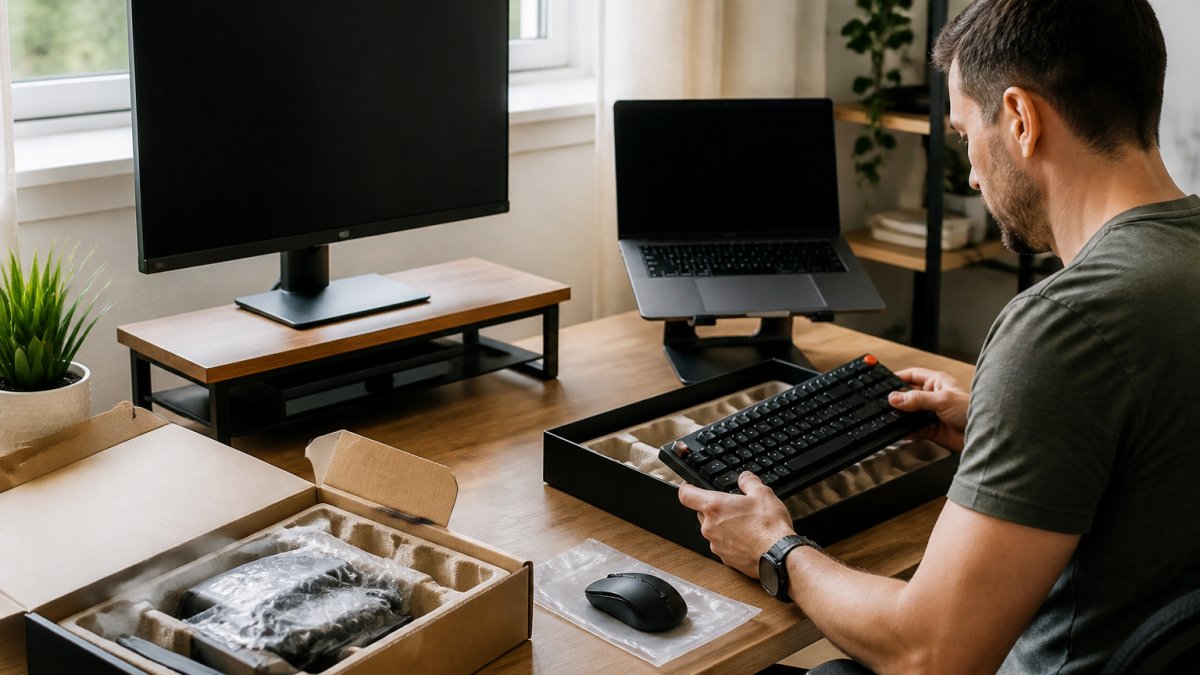
Your laptop was designed for portability, not eight-hour use. Its screen sits too low and its keyboard too close, so you crane your neck and round your shoulders. Separating the screen from the input devices fixes both at once.
Monitors and Display Upgrades
An external monitor is the single biggest upgrade most remote workers can make. A larger screen lets you keep documents side by side and raise the display to eye level.
- Size: 24 to 27 inches suits most desks; anything larger needs more depth
- Resolution: a 4K display gives sharper text, which reduces eye strain during long sessions
- Panel: IPS panels hold color and viewing angles better than older TN panels
If you already own a good laptop screen, a monitor arm lifts it to the right height without eating desk space, often cheaper than a second display.
Keyboards, Mice, and Input Devices
Your keyboard and mouse are where your hands spend the day, so don't cut corners. A mechanical keyboard with silent switches gives satisfying feedback without annoying anyone on your calls, and an ergonomic vertical or trackball mouse keeps your wrist neutral.
Switch type matters more than brand. Linear silent switches suit shared spaces; tactile switches suit people who like confirmation with each keystroke. Try before you commit, or buy from a seller with easy returns.
Laptop Stand for Remote Work: Comfort and Ergonomics
A laptop stand for remote work raises your screen to eye level and is the cheapest fix for neck strain. Pair it with an external keyboard and mouse, because raising the laptop makes its built-in keyboard unusable.
The evidence here is not complicated. The U.S. Occupational Safety and Health Administration's computer workstation guidance describes this neutral posture as the goal for screen-based work, and it applies just as much at home as in an office.
What to Look For in a Laptop Stand
Not all stands are equal, and the wrong one creates new problems.
- Height range: adjustable is better than fixed, since your ideal height depends on your chair and desk
- Stability: a stand that wobbles while you type is worse than no stand at all
- Ventilation: open designs let your laptop breathe, which matters during long video calls
Webcam and Microphone for Video Calls: Look and Sound Professional
Your webcam and microphone for video calls matter more than most people admit. Viewers forgive a plain background but notice bad audio instantly. Fix sound first, then image; a decent microphone beats an expensive camera every time.
Poor audio forces listeners to work harder, and that effort reads as disinterest or incompetence even when it is neither. Clear sound keeps people engaged.
Lighting and Audio Accessories for Clear Calls
Lighting is the cheapest way to look better on camera. A monitor-mounted light bar throws even, glare-free light across your face without taking up desk space. An LED lamp in front of you, never behind, removes the silhouette effect.
For audio, you have three realistic options:
| Option | Best For | Trade-off |
|---|---|---|
| USB condenser microphone | Dedicated desk setups | Picks up room noise |
| Headset with boom mic | Noisy homes and shared spaces | Less natural on camera |
| Wireless earbuds with mic | Hybrid and travel days | Battery dependent |
A wireless speaker is worth adding if you take calls away from your desk or want better focus music. Keep it muted during meetings to avoid feedback.
Portable Tech Accessories for Remote Workers: Gear for Hybrid Work
Portable tech accessories for remote workers solve a different problem: how to work well when your desk changes every day. The goal is a small kit that turns any table, cafe counter, or hotel desk into something usable, so every item has to earn its place in your bag.
Connectivity on the Go: Hubs, Docks, and Cable Management
Modern laptops have too few ports, and that is where a multiport hub or docking station earns its keep. A compact hub adds HDMI, USB-A, and card readers through a single connection, so you can plug into a monitor and peripherals in one motion.
A few practical rules for hybrid kit:
- Choose a hub that matches your laptop's port, usually USB-C or Thunderbolt
- Check it supports your monitor's resolution and refresh rate before buying
- Pack a short cable pouch or cable organizer so nothing tangles in transit
Budget-Friendly vs Premium Tech Accessories: What to Prioritize
Most roundups list premium gear and leave you guessing whether the cheaper option is good enough. A better approach is a good-better-best framework built on three questions: what does the accessory fix, does it work with your existing devices, and how often will you touch it? Spend where your body and calls depend on it; save where the accessory is occasional.
A Good-Better-Best Framework (No Prices, Just Tiers)
| Tier | What It Looks Like | Best For | Watch-Outs |
|---|---|---|---|
| Good | Basic but functional: a fixed-height laptop stand, a wired USB microphone, a simple USB-C hub with HDMI and USB-A | Tight budgets, first setup, backup gear | Fixed height may not match your chair; unpowered hubs can drop displays under load |
| Better | Adjustable and durable: an adjustable aluminum stand, a mechanical keyboard with silent switches, a powered dock, a monitor light bar | Most remote professionals who work at one desk daily | Check port type (USB-C vs Thunderbolt) and monitor resolution support before buying |
| Best | Ergonomic and repairable: a fully adjustable chair, a monitor arm with height and tilt, a broadcast-style USB mic with a boom arm, a Thunderbolt dock | People who sit 6+ hours a day or take frequent client calls | Diminishing returns on audio and video beyond "clear and reliable" |
Compatibility and Setup Requirements
Before buying, confirm four things:
- Port type: USB-C, Thunderbolt, or USB-A. A Thunderbolt dock will not work at full speed on a plain USB-C port, and some hubs need a driver for display output.
- Operating system: macOS, Windows, and Linux handle display scaling, audio routing, and function keys differently. Check the manufacturer's OS support page.
- Power delivery: if you want one cable to charge your laptop, the dock or hub must supply enough wattage for your model. Underpowered docks charge slowly or not at all.
A common mistake is buying a hub first and discovering later it cannot drive two external monitors. Decide your monitor plan before you buy the dock.
Evidence-Based Ergonomic and Productivity Claims
Not every benefit is measurable. Distinguish these:
- Well-supported: raising your screen to eye level reduces forward head posture; an external keyboard and mouse let your shoulders relax; anti-glare lighting reduces eye strain during long sessions. OSHA's computer workstation guidance describes neutral posture as the goal for screen-based work.
- Plausible but variable: noise-canceling headphones help in noisy environments, but the benefit depends on the noise type and your task. They are not a substitute for a quiet room when you need deep focus.
- Mostly marketing: "blue light blocking" lenses have mixed evidence for reducing eye strain; the bigger factors are screen height, glare, and taking breaks. "Ergonomic" on a product page is a label, not a guarantee.
Accessibility and Different Work Needs
A one-size-fits-all list fails people with different sensory, mobility, or ergonomic needs. Consider:
- Vision: larger displays, high-contrast keyboards with clear keycaps, and screen readers work better with certain monitor and OS combinations. Check compatibility before buying.
- Mobility: vertical mice, trackballs, and switch or voice input reduce repetitive strain. Some keyboards support remapping for one-handed use.
- Hearing: captions and a boom mic help in calls; a headset with a clear mic is often more reliable than earbuds for all-day use.
Buy for your body and work pattern, not an average user who does not exist.
Privacy and Security Accessories
Remote professionals often handle sensitive calls and data on shared or home networks. Practical additions:
- Webcam cover: a simple sliding cover prevents accidental camera activation.
- Privacy filter: limits side-angle viewing on a laptop or monitor in coworking spaces and on planes.
- VPN and secure hotspot: use a reputable VPN on public Wi-Fi and avoid handling sensitive accounts on open networks.
These are not glamorous, but they address a real remote-work risk that most gadget roundups skip.
Choosing the Best Tech Accessories for Remote Professionals: A Decision Framework
The best tech accessories for remote professionals are matched to your actual work pattern, not the best reviews. Use three questions: where do you work most, what hurts at the end of the day, and what breaks your focus?
Work through it like this:
- Mostly at one desk? Prioritize a monitor, proper chair, and full-size input devices
- Mostly hybrid or travelling? Prioritize a folding laptop stand, compact hub, and wireless earbuds
- Neck or shoulder pain? Fix screen height first, then your chair
Accessibility matters here too. If you have reduced vision or mobility, larger displays, high-contrast keyboards with clear keycaps, and voice or switch input options change what is possible. Buy for your body, not a generic average user.
Conclusion
Building a setup that works takes trial and error, and the wrong accessory can create as many problems as it solves. That is why we curate gear that protects your tech, keeps you comfortable, and travels well, from ergonomic accessories for organizing a mobile workstation to protective cases that survive a commute. Browse the HJ Accessories collection to find functional pieces that fit your routine, and take advantage of free shipping on orders over $25.
Frequently Asked Questions
What tech accessories do remote professionals need?
Remote professionals typically need a laptop stand to raise the screen to eye level, an external keyboard and mouse for comfortable typing, a quality webcam and microphone for video calls, noise-canceling headphones to reduce distractions, and a multiport hub or docking station to connect extra devices. A comfortable office chair and good lighting also make a significant difference to your daily productivity and comfort.
What should I look for in a laptop stand for remote work?
Look for a laptop stand that raises your screen to eye level to reduce neck strain, offers adjustable height or angle, and is stable enough to hold your device securely. Consider portability if you move between rooms or travel. Materials matter too: aluminum stands tend to be sturdy and help with heat dissipation, while foldable plastic or metal designs are lighter for hybrid work setups.
How can I improve my home office setup?
Start with ergonomics: position your monitor or laptop stand so the top of the screen is at or slightly below eye level, and keep your keyboard and mouse within easy reach. Add a webcam and microphone for clearer video calls, use a light bar or LED lamp to reduce eye strain, and organize cables with clips or a tray. A supportive chair and anti-fatigue mat can also improve comfort during long work sessions.
What are the best portable tech accessories for working remotely?
Portable tech accessories for remote workers include a foldable laptop stand, a compact multiport hub, wireless earbuds with a good microphone, a portable charger, and a lightweight keyboard. These items fit easily in a bag and let you recreate a functional workspace in a coffee shop, co-working space, or hotel room without carrying bulky equipment.